
USB-C port compatibility checklist
The connector shape tells you less than the host’s data, display and charging specifications.
Keep four lines in your shopping notes
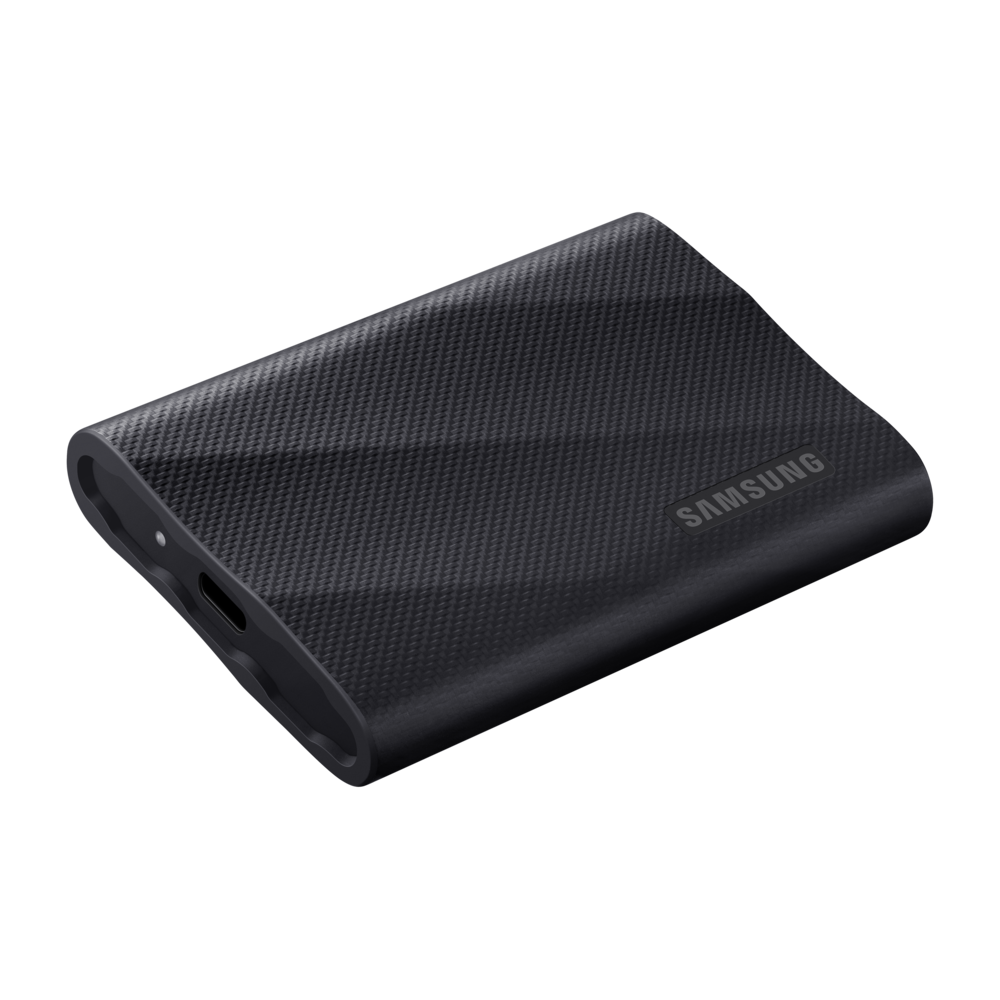
Write down data speed, video support, charging input and accessory function for the exact host port. For example, a T9 needs Gen 2x2 support to use its 20 Gbps interface, while an HDMI hub needs the laptop to support video over USB-C. Neither requirement follows from a connector fitting into the socket.
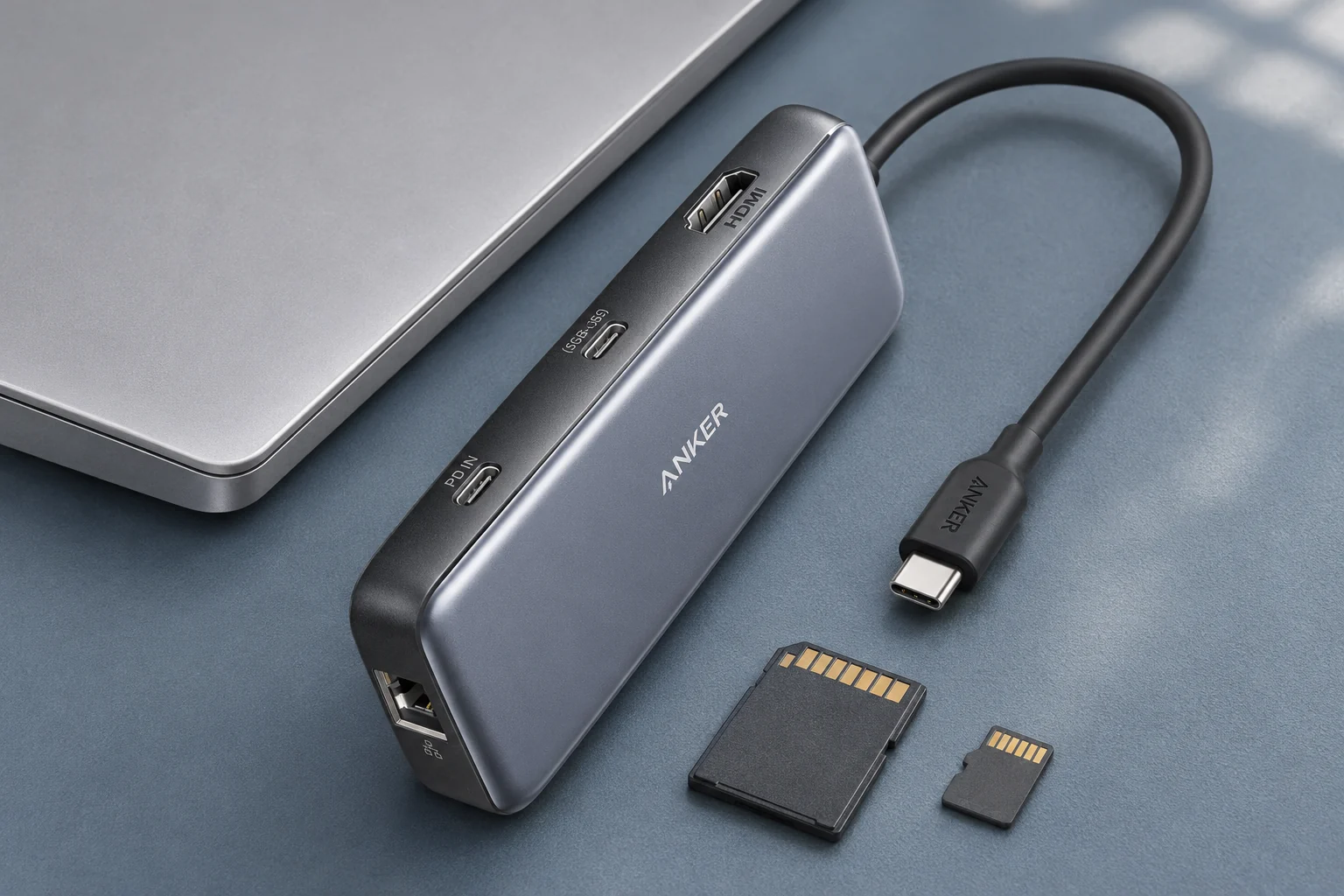
On the accessory side, separate a USB-C power-input socket from a data socket. The Anker hubs give those ports different jobs. A short note with the computer model, the port you will use and the accessory model is more useful when comparing listings than a list of USB-C logos.
Sources for these notes
- Logitech Brio 300 — Graphite — manufacturer listing
- Anker 332 USB-C Hub — A8355 — manufacturer listing
- Anker 555 USB-C Hub — A8383 — manufacturer listing
- Samsung T9 2TB — Black — manufacturer listing
- USB-IF: USB 3.2 transfer rates
- VESA: DisplayPort over USB-C
- Samsung memory buying guide and performance conditions
Find the specification for the actual port
Start with the laptop or desktop model number and its manufacturer’s port diagram. Two USB-C ports on the same computer can have different jobs. Write down the specification for the one you intend to use, rather than taking the fastest headline from the product page.
USB-IF identifies 5, 10 and 20 Gbps transfer rates within USB 3.2. A USB-C plug does not select one of those rates for you. The Samsung T9 is a useful example: its 20 Gbps connection needs a host that supports USB 3.2 Gen 2x2. A 10 Gbps hub in between also changes the path.
Separate data, video and power
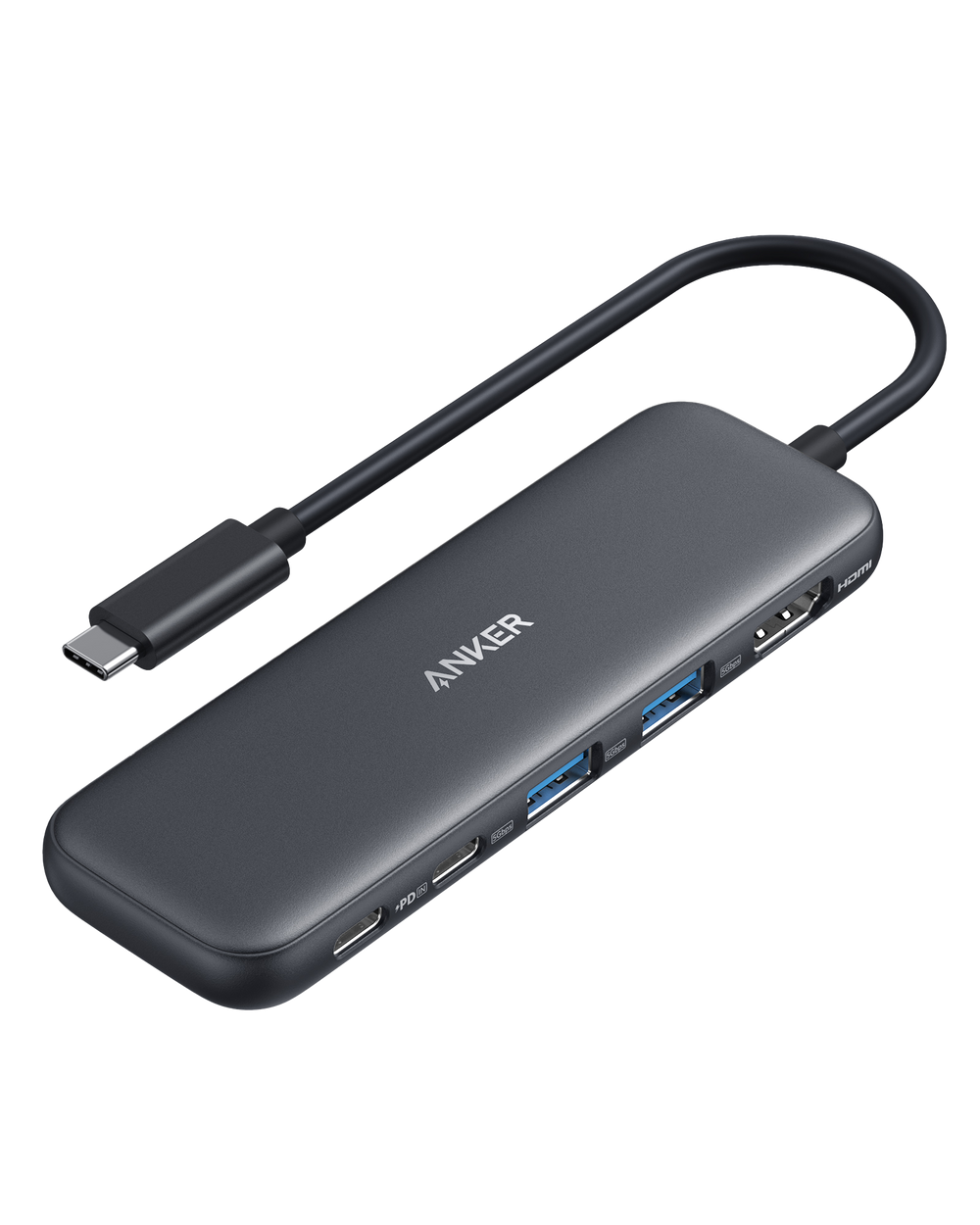
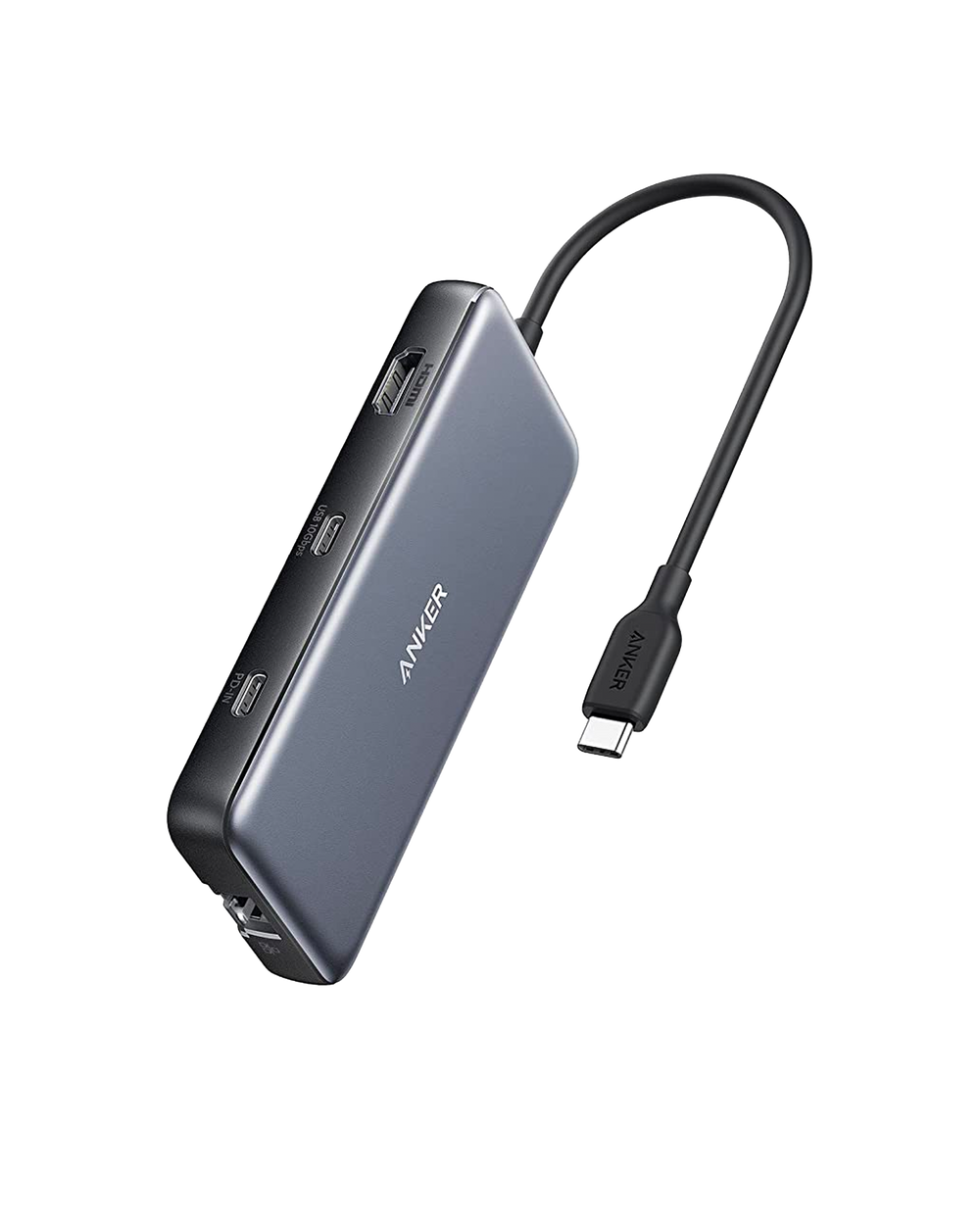
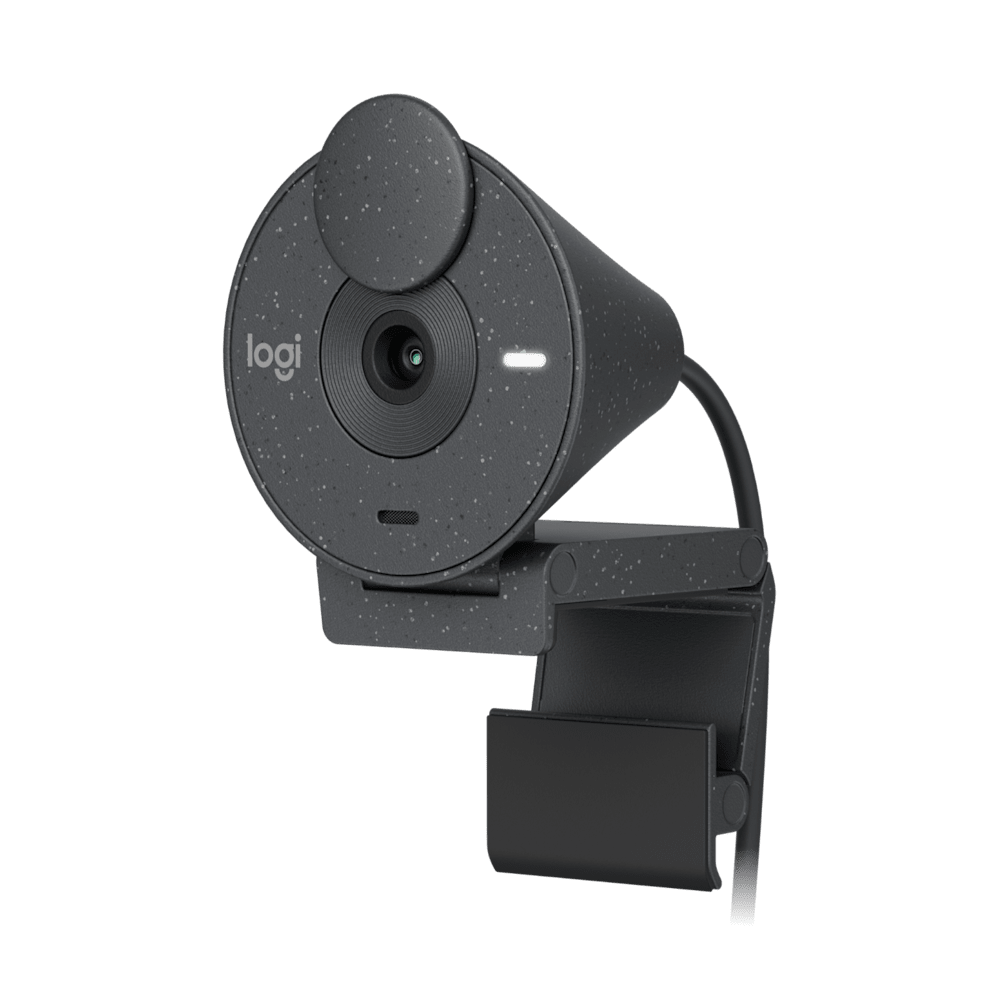
A Brio 300 needs a USB-C data connection for its camera. An HDMI hub needs the appropriate video capability from the computer as well. A charging input on the hub serves a third purpose. These are separate requirements even when the openings look alike.
On the Anker 555, the USB-C data port is not a video output. On both the 332 and 555, the power-input socket is where the charger goes. Read the small labels before assigning cables to ports.
- Data: record the host rate, hub rate and device interface.
- Video: check DisplayPort over USB-C support and the intended resolution/refresh rate.
- Power: check the computer’s requirement and the hub’s stated laptop output.
- Cable: use one rated for the intended data, video and power role.
Make a short port map
A useful note looks like this: left USB-C → hub → HDMI monitor and mouse; right USB-C → SSD; charger → hub power input. You can spot a missing connection before ordering anything.
Keep the map with the model numbers. If a new accessory fails to work, compare it with the map before replacing the whole hub. A different port or a correctly rated cable may resolve a mismatch without another accessory purchase.
Sources
- Anker 332 USB-C Hub — A8355 — manufacturer listingChecked November 15, 2026
- Anker 555 USB-C Hub — A8383 — manufacturer listingChecked November 15, 2026
- Samsung T9 2TB — Black — manufacturer listingChecked November 15, 2026
- Logitech Brio 300 — Graphite — manufacturer listingChecked November 15, 2026
- USB-IF: USB 3.2 transfer ratesChecked November 15, 2026
- VESA: DisplayPort over USB-CChecked November 15, 2026
- Samsung memory buying guide and performance conditionsChecked November 15, 2026